

Most kubectl cheat sheets list commands by resource type. This one lists them by what you are trying to do, and every flag in it was checked against the Kubernetes v1.37 reference on November 18, 2026.
Bottom line
12 commands cover most days:
| You want to | Run |
|---|---|
| Know which cluster you are about to change | kubectl config current-context |
| List the pods that are not running | kubectl get pods -A --field-selector=status.phase!=Running |
| Know why a pod is unhealthy | kubectl describe pod POD |
| Read the logs of the container that just crashed | kubectl logs POD --previous |
| See only the warnings | kubectl events --types=Warning |
| Get a shell in a container | kubectl exec -it POD -- sh |
| Get a shell when the image has no shell | kubectl debug -it POD --image=busybox:1.28 --target=CONTAINER |
| Reach a service from your laptop | kubectl port-forward svc/SERVICE 8080:80 |
| See a change before you make it | kubectl diff -f FILE.yaml |
| Restart every pod of a Deployment, gradually | kubectl rollout restart deployment/NAME |
| Go back to the previous version | kubectl rollout undo deployment/NAME |
| Check your permissions before you try | kubectl auth can-i delete pods -n NAMESPACE |
Words in capitals are placeholders. Replace them with your own names.
The second command filters on the pod phase. A pod in CrashLoopBackOff, or one that runs with 0/1 containers ready, still has the phase Running and stays out of that list, and finished Job pods show up in it. For those, read the READY and STATUS columns of kubectl get pods -A.
Do you open this page during incidents? A senior engineer spends an hour on your CI/CD, infra, Kubernetes, cloud cost and on-call setup. You leave with your top 3 risks, quick wins and a rough roadmap. Claim your free assessment.
Find your task:
- A pod is broken: debug a pod by its status
- The image has no shell: kubectl debug
- You are about to change production: change things safely
- A release went wrong: rollouts
- A node has to go: cordon, drain and uncordon
- You are about to delete something: delete commands that hurt
- A command from an old cheat sheet fails: old commands that no longer work
Setup: completion, an alias and the right cluster
Tab completion and a 1-letter alias, for bash:
source <(kubectl completion bash)
alias k=kubectl
complete -o default -F __start_kubectl k
For zsh, add this to ~/.zshrc:
source <(kubectl completion zsh)Then the commands that tell you where you are:
| Task | Command |
|---|---|
| List the clusters in your kubeconfig | kubectl config get-contexts |
| Show the active one | kubectl config current-context |
| Switch cluster | kubectl config use-context CONTEXT |
| Set the default namespace for the active context | kubectl config set-context --current --namespace=NAMESPACE |
| Run 1 command against another cluster without switching | kubectl --context=CONTEXT get pods |
| Show client and server versions | kubectl version |
| List every resource type the cluster knows | kubectl api-resources |
| Read the documentation of a field | kubectl explain pod.spec.containers.resources |
The classic kubectl accident is a correct command sent to the wrong cluster. In scripts and runbooks, write --context and -n on every command. A script that depends on whatever context your terminal had last is a script that will delete staging in production one day.
Keep kubectl within 1 minor version of the cluster. The version skew policy says: "kubectl is supported within one minor version (older or newer) of kube-apiserver." The latest stable release today is v1.37.2, and the supported minors are 1.37, 1.36 and 1.35.
Look at things: get, describe and output formats
| Task | Command |
|---|---|
| Pods in every namespace | kubectl get pods -A |
| Pods with their node and IP | kubectl get pods -o wide |
| Pods by label | kubectl get pods -l app=web |
| Pods on 1 node | kubectl get pods -A --field-selector=spec.nodeName=NODE |
| Pods sorted by restarts | kubectl get pods --sort-by='.status.containerStatuses[0].restartCount' |
| Newest objects last | kubectl get pods --sort-by=.metadata.creationTimestamp |
| Watch changes live | kubectl get pods -w |
| A label as a column | kubectl get pods -L app |
| The full object | kubectl get deployment NAME -o yaml |
| Names only, for piping | kubectl get pods -o name |
| Only the status part | kubectl get pod POD -o jsonpath='{.status}' |
| The human summary with events | kubectl describe pod POD |
Label selectors (-l) support =, !=, in and notin. Field selectors support only =, == and !=, and the reference adds: "The server only supports a limited number of field queries per type."
Pull out 1 field with JSONPath
# Every image running in the cluster
kubectl get pods -A -o jsonpath='{range .items[*]}{.metadata.namespace}{"\t"}{.metadata.name}{"\t"}{.spec.containers[*].image}{"\n"}{end}'

# One key of a Secret, decoded
kubectl get secret NAME -o jsonpath='{.data.password}' | base64 -d

# A key with a dot in its name
kubectl get secret NAME -o jsonpath='{.data.ca\.crt}' | base64 -d
JSONPath in kubectl has no regular expressions. The docs say to use jq for that.
Build your own table with custom-columns
kubectl get pods -o custom-columns='NAME:.metadata.name,NODE:.spec.nodeName,IMAGE:.spec.containers[*].image'Why "get all" misses things
kubectl get all does not return all. all is a category that resource types opt into. In the Kubernetes source today it covers pods, services, deployments, replicasets, statefulsets, daemonsets, jobs, cronjobs, replicationcontrollers and horizontalpodautoscalers. ConfigMaps, Secrets, Ingresses, PersistentVolumeClaims, ServiceAccounts, Roles and NetworkPolicies are missing, and so are most custom resources.
To list everything in a namespace:
kubectl api-resources --verbs=list --namespaced -o name \
  | xargs -n 1 kubectl get --show-kind --ignore-not-found -n NAMESPACE
Run it before you delete a namespace you did not create.
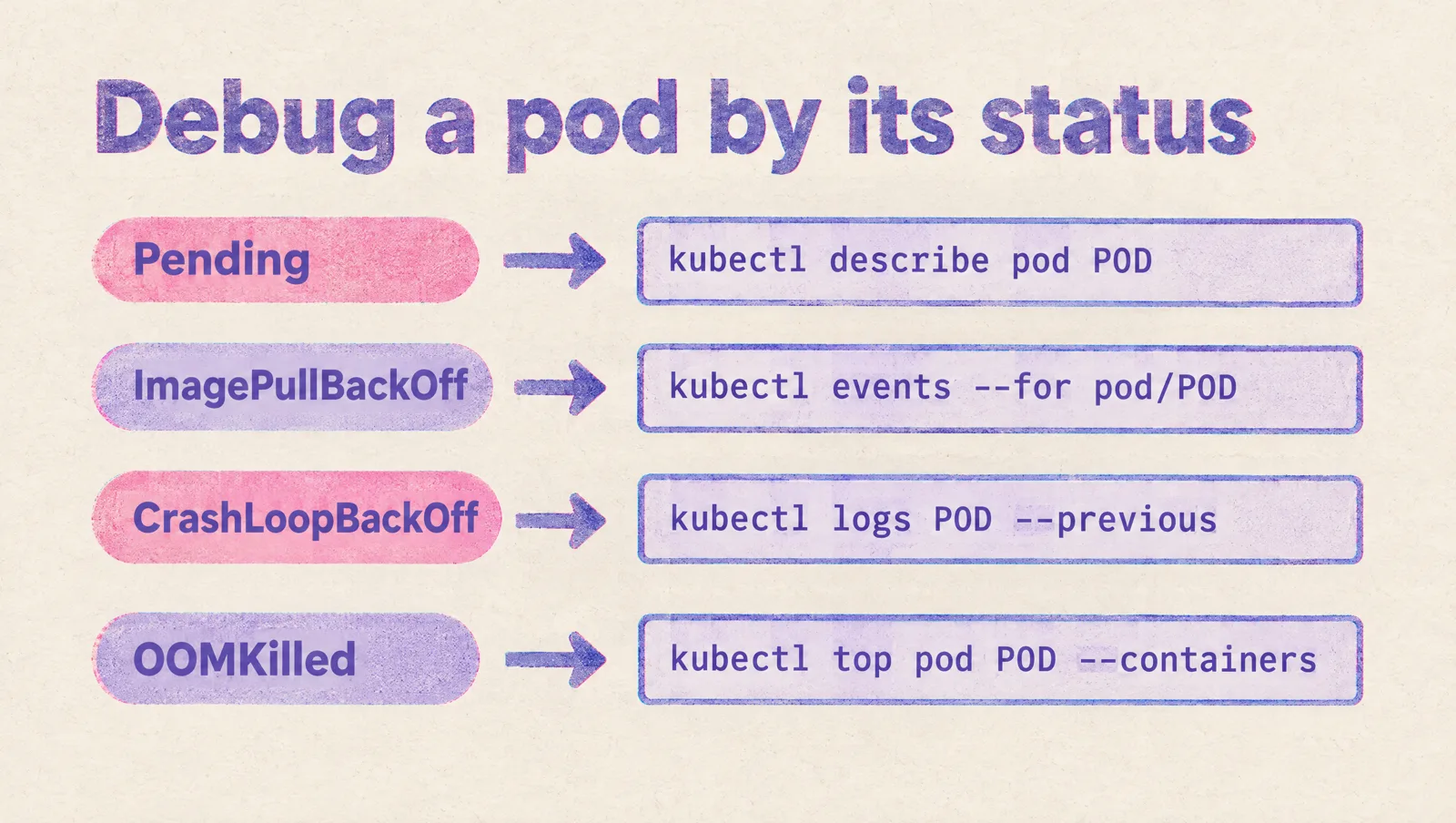
Debug a pod by its status
Start from the STATUS column of kubectl get pods. Each status has a first command.
| Status | What it means | First command |
|---|---|---|
Pending | No node accepted the pod, or its volume is not ready | kubectl describe pod POD, then read the Events at the bottom |
ImagePullBackOff, ErrImagePull | The node cannot pull the image: wrong tag, private registry, missing pull secret | kubectl events --for pod/POD |
CrashLoopBackOff | The container starts, exits and gets restarted with a growing delay | kubectl logs POD --previous |
OOMKilled | The container went over its memory limit and the kernel killed it | kubectl describe pod POD, then read Last State |
Running with 0/1 ready | The readiness probe fails | kubectl describe pod POD, then kubectl logs POD |
Terminating for minutes | A finalizer or an unreachable node holds the pod | kubectl get pod POD -o jsonpath='{.metadata.finalizers}' |
The glossary has a page for each of the 3 most common ones: CrashLoopBackOff, ImagePullBackOff and OOMKilled.
The reason the last container died, without scrolling through describe:
kubectl get pod POD -o jsonpath='{.status.containerStatuses[*].lastState.terminated.reason}'If the answer is OOMKilled, compare real usage with the limit before you raise it (how to set requests and limits):
kubectl top pod POD --containerskubectl top needs Metrics Server in the cluster. It reports CPU and memory only, and a new pod has no numbers for the first minutes.
Logs
| Task | Command |
|---|---|
| Follow the logs | kubectl logs -f POD |
| The container that ran before the last restart | kubectl logs POD --previous |
| 1 container of a pod with several | kubectl logs POD -c CONTAINER |
| Every container of the pod | kubectl logs POD --all-containers |
| The last 15 minutes | kubectl logs POD --since=15m |
| The last 100 lines, with timestamps | kubectl logs POD --tail=100 --timestamps |
| Every pod of a Deployment | kubectl logs deployment/NAME --all-pods |
| Every pod with a label, each line marked with its pod | kubectl logs -l app=web --prefix --tail=50 |
3 details that cost people time:
kubectl logs deployment/NAMEwithout--all-podsreads 1 pod. The flag arrived in kubectl 1.31.- With a label selector,
--taildefaults to 10 lines per pod, and-fstops with an error when the selector matches more than 5 pods. Raise that limit with--max-log-requests. --previousreads the previous container of the same pod. Once the pod is deleted, those logs are gone from kubectl. A log pipeline is the only thing that keeps them.
Events
kubectl events --for pod/POD
kubectl events --types=Warning
kubectl events -A --types=Warning --watch
kubectl events has been a top-level command since 1.26. It sorts by time on its own, which kubectl get events does not. If you are on muscle memory, kubectl get events --sort-by=.metadata.creationTimestamp still works.
Shell, files and ports
| Task | Command |
|---|---|
| A shell in the pod | kubectl exec -it POD -- sh |
| 1 command in 1 container | kubectl exec POD -c CONTAINER -- env |
| A command in the first pod of a Deployment | kubectl exec deployment/NAME -- date |
| Copy a file out of a pod | kubectl cp NAMESPACE/POD:/tmp/dump.hprof ./dump.hprof |
| Local port 8080 to port 80 of a Service | kubectl port-forward svc/SERVICE 8080:80 |
| Local port 5432 to a pod | kubectl port-forward pod/POD 5432:5432 |
The -- before the command is required. The form without it was removed in kubectl 1.31, and some cheat sheets that rank today still print it.
kubectl cp needs the tar binary inside the container. On a distroless image it fails, which brings us to the next command.
kubectl debug: when exec is not enough
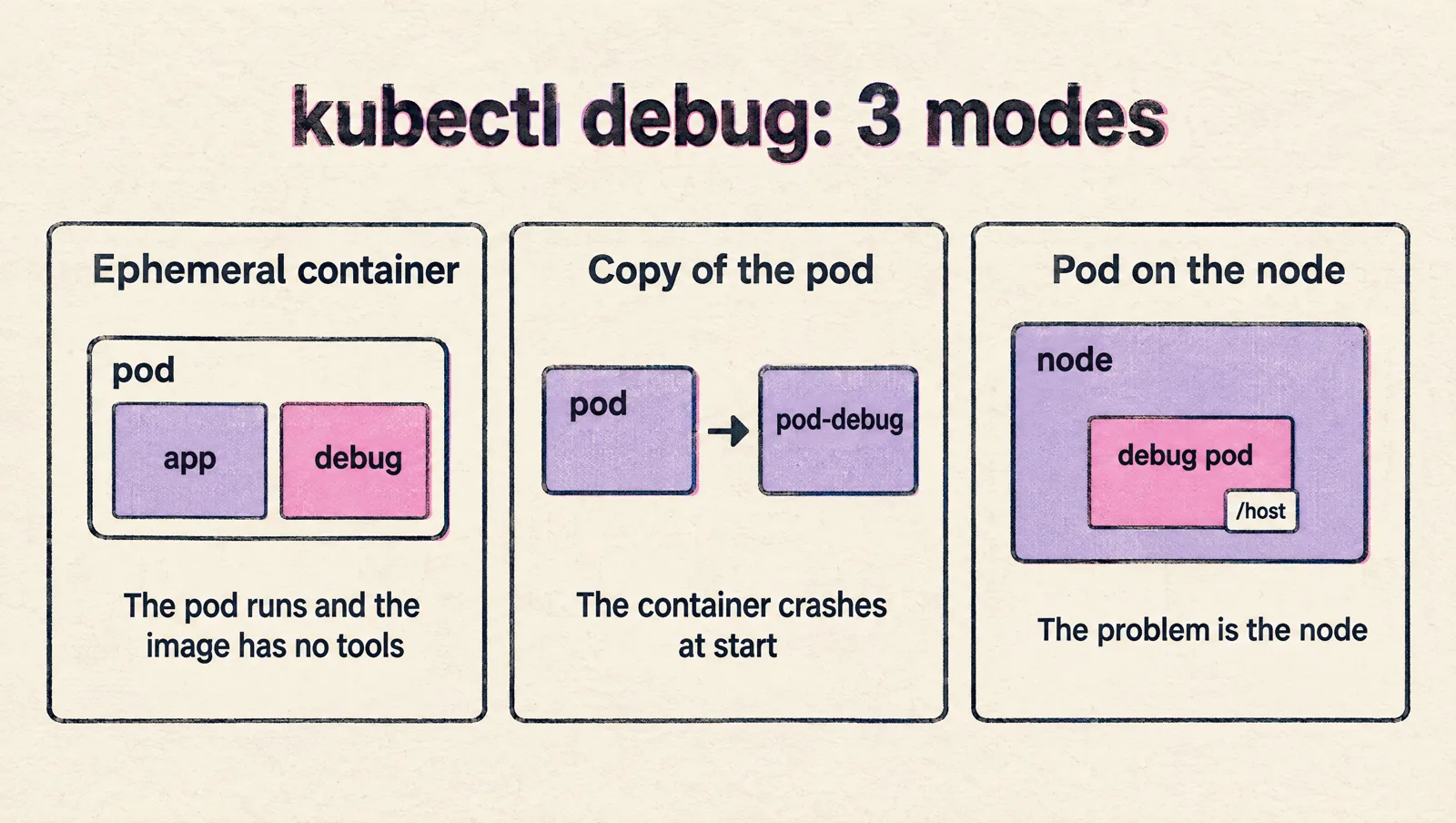
kubectl exec can only run a binary that exists in the image. A distroless image has no shell and no tools, and a crashing container does not stay up long enough to exec into. kubectl debug covers both, in 3 modes.
| Mode | Command | Use it when |
|---|---|---|
| Ephemeral container in the running pod | kubectl debug -it POD --image=busybox:1.28 --target=CONTAINER | The pod runs and the image has no tools |
| Copy of the pod | kubectl debug POD -it --copy-to=POD-debug --container=CONTAINER -- sh | The container crashes at start and you want it with another command |
| Pod on the node | kubectl debug node/NODE -it --image=busybox:1.28 | The problem is the node and you have no SSH |
--targetputs the debug container in the process namespace of the named container, sopsshows its processes. The container runtime has to support it.- An ephemeral container stays in the pod spec until the pod is replaced. It never restarts, and you cannot add one with
kubectl edit. - In node mode the node's filesystem is mounted at
/host. - Delete the copy and the node pod when you are done. Nothing cleans them up for you.
--profile sets how much power the debug container gets: general, baseline, restricted, netadmin or sysadmin. The default changed from legacy to general in kubectl 1.36, and legacy is planned for removal in 1.39. Use --profile=sysadmin when you need root on a node, and --profile=restricted in namespaces that enforce the restricted Pod Security Standard.
(One official page still says the default is legacy. The v1.37 command reference and the 1.36 changelog say general.)
Change things safely
The order I use for any change to a cluster that matters: diff, server dry run, apply.
kubectl diff -f deploy.yaml
kubectl apply -f deploy.yaml --dry-run=server
kubectl apply -f deploy.yaml
kubectl diffexits with 0 when nothing would change, 1 when something would, and more than 1 on an error. That makes it a 1-line drift check in CI.--dry-run=serversends the request through admission and validation without saving it.--dry-run=clientonly prints the object. Always write the value: the bare--dry-runhas been deprecated since 1.18.kubectl apply -k DIRECTORYapplies a kustomization the same way.
Let kubectl write the YAML
kubectl create deployment web --image=nginx:1.27 --dry-run=client -o yaml > deploy.yaml
kubectl create secret generic db --from-literal=password=CHANGE_ME --dry-run=client -o yaml
kubectl create configmap app-config --from-file=config.yaml --dry-run=client -o yaml
kubectl create job manual-run --from=cronjob/NAME
The last line runs a CronJob once, now. It is the fastest way to test one without waiting for the schedule.
Quick edits
| Task | Command |
|---|---|
| Change the image | kubectl set image deployment/NAME CONTAINER=IMAGE:TAG |
| Change an environment variable | kubectl set env deployment/NAME KEY=value |
| Change a memory limit | kubectl set resources deployment/NAME -c CONTAINER --limits=memory=512Mi |
| Scale | kubectl scale deployment/NAME --replicas=3 |
| Patch 1 field | kubectl patch deployment NAME -p '{"spec":{"replicas":3}}' |
| Add or change a label | kubectl label pods POD team=payments --overwrite |
| Remove a label | kubectl label pods POD team- |
| Open the live object in your editor | kubectl edit deployment/NAME |
If Argo CD or Flux owns the object, these edits last until the next sync. If Helm owns it, they last until the next helm upgrade. Use them to stop an incident, then put the same change in Git.
apply, create or replace
applysends only the differences and keeps fields that other writers set. Use it for everything that lives in a file.createfails when the object exists. Use it for one-off objects and for generating YAML.replaceswaps the whole spec and drops whatever is missing from your file.replace --forcedeletes and recreates the object, and the official quick reference marks it: "Will cause a service outage."
Pick 1 per object. The docs are blunt about it: "Mixing and matching techniques for the same object results in undefined behavior."
kubectl apply --server-side moves the merge to the API server and records which tool owns each field. When another tool owns a field you are changing, the request is rejected until you pass --force-conflicts. Read the conflict before you force it: it is usually your autoscaler or your GitOps controller telling you the field is taken.
Rollouts: restart, watch and undo
| Task | Command |
|---|---|
| Wait for a rollout to finish | kubectl rollout status deployment/NAME --timeout=120s |
| Restart every pod, one batch at a time | kubectl rollout restart deployment/NAME |
| Restart every Deployment with a label | kubectl rollout restart deployment --selector=app=web |
| List the revisions | kubectl rollout history deployment/NAME |
| Go back 1 revision | kubectl rollout undo deployment/NAME |
| Go back to a specific revision | kubectl rollout undo deployment/NAME --to-revision=2 |
| Freeze a rollout halfway | kubectl rollout pause deployment/NAME |
| Continue it | kubectl rollout resume deployment/NAME |
rollout restart is the answer to "the app did not pick up the new ConfigMap". It follows the Deployment's update strategy. With the default RollingUpdate strategy, 2 or more replicas and a readiness probe, nobody notices. With the Recreate strategy every pod stops first.
rollout undo has the same catch as the quick edits: a GitOps controller will roll you forward again on its next sync. Revert the commit too.
Wait for something in a script
kubectl wait --for=condition=Available deployment/NAME --timeout=120s
kubectl wait --for=condition=Ready pod -l app=web --timeout=60s
kubectl wait --for=condition=Complete job/NAME --timeout=10m
kubectl wait --for=delete pod/POD --timeout=60s
kubectl wait --for=jsonpath='{.status.phase}'=Running pod/POD
The default timeout is 30 seconds, so set it. kubectl wait replaces every sleep 30 in a pipeline, and it fails the step when the thing never becomes ready. One catch: waiting for condition=Complete on a Job that failed runs until the timeout, because a failed Job never gets that condition.
Nodes: cordon, drain and uncordon
kubectl cordon NODE
kubectl drain NODE --ignore-daemonsets --delete-emptydir-data --timeout=300s
# patch, reboot or replace the node
kubectl uncordon NODE
cordon stops new pods from landing on the node. drain cordons first and then evicts what runs there. A plain kubectl drain NODE stops on most real nodes, because of what drain refuses to touch by default:
| On the node | What drain does | Flag |
|---|---|---|
| DaemonSet pods | Refuses to proceed. With the flag it skips them, since the DaemonSet would recreate them at once | --ignore-daemonsets |
| Pods with an emptyDir volume | Refuses, because the data dies with the pod | --delete-emptydir-data |
| Pods with no controller | Refuses, because nothing would recreate them | --force |
| Pods under a PodDisruptionBudget with no room left | Waits and retries until the budget allows the eviction | --timeout to give up |
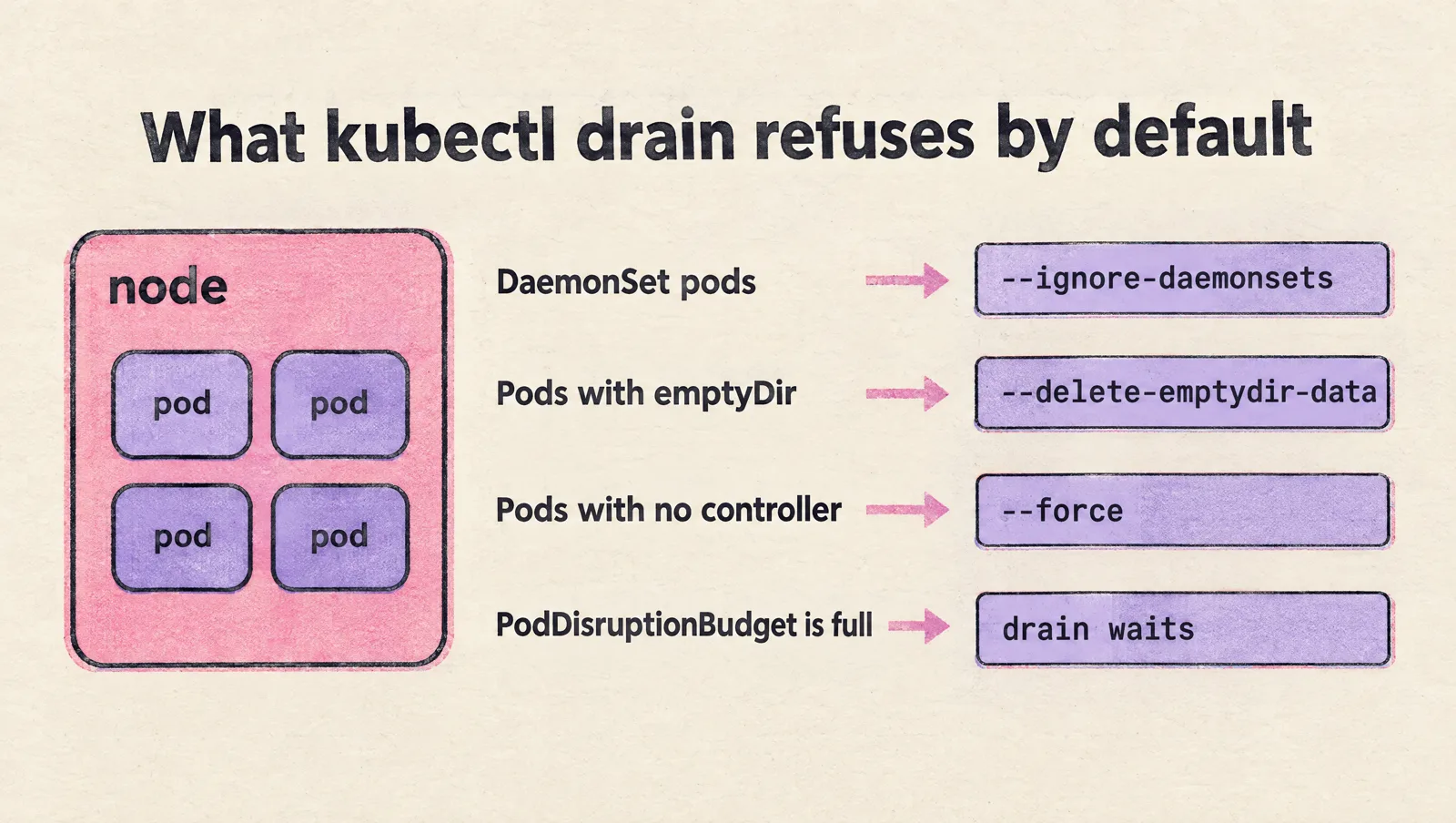
There is a flag that skips PodDisruptionBudgets, --disable-eviction, and its own help text says "use with caution". A drain that hangs on a budget is doing its job. Fix the budget or add a replica. The longer version is in how to drain Kubernetes nodes without evicting critical workloads.
Other node commands:
kubectl top node
kubectl describe node NODE
kubectl taint nodes NODE dedicated=batch:NoSchedule
kubectl taint nodes NODE dedicated=batch:NoSchedule-
The trailing - on the last line removes the taint.
Check access: can-i and whoami
kubectl auth whoami
kubectl auth can-i create deployments -n NAMESPACE
kubectl auth can-i --list -n NAMESPACE
kubectl auth can-i list secrets -n NAMESPACE --as=system:serviceaccount:NAMESPACE:SERVICEACCOUNT
The last one answers "can this workload read Secrets?" without deploying anything. -q prints nothing and only sets the exit code, for scripts.
If kubectl exec or port-forward returns a permission error after an upgrade to 1.35: since that release the API server requires create on pods/exec, pods/attach and pods/portforward for every request. Roles that only granted get on them no longer work.
When a command behaves in a way you cannot explain, add --v=6 to see every API request kubectl makes, and --v=8 to see the request bodies.
Delete commands that hurt
| Command | What it really does |
|---|---|
kubectl delete pod POD | Asks the pod to stop and gives it its grace period, 30 seconds by default |
kubectl delete pod POD --now | Same as --grace-period=1. The pod still gets a signal and 1 second |
kubectl delete pod POD --grace-period=0 --force | Removes the pod from the API at once and does not wait for the node to confirm that the processes stopped |
kubectl delete pods --all | Deletes every pod in the current namespace. Whichever namespace that is |
kubectl delete namespace NAMESPACE | Deletes everything in the namespace. The docs put an exclamation mark on that sentence |
kubectl delete -f DIRECTORY/ | Deletes every object defined in every manifest of the directory |
kubectl replace --force -f FILE.yaml | Deletes and recreates. An outage for a Deployment |
kubectl delete deployment NAME --cascade=orphan | Deletes the Deployment and leaves its pods running |
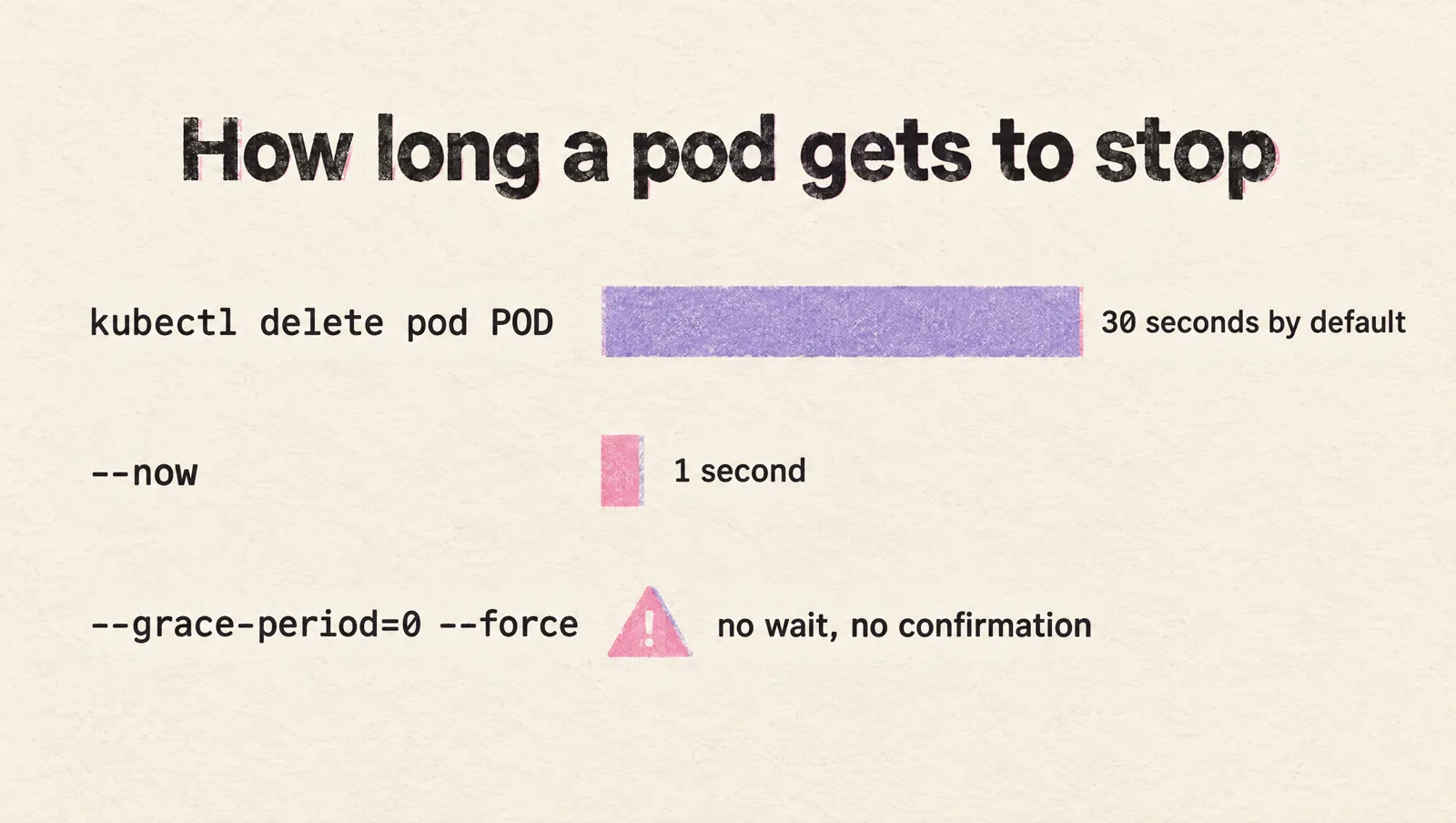
Force delete deserves a paragraph. The reference warns that it "does not wait for confirmation that the pod's processes have been terminated, which can leave those processes running". For a stateless web pod that is harmless. For a StatefulSet pod it can mean 2 copies of the same database member writing at once, and the StatefulSet docs name the result: data loss. If a pod is stuck in Terminating, find out what holds it (a finalizer, or a node that is gone) before you reach for --force. When the node is dead for good, the documented fix is to delete the Node object.
Also worth knowing: deleting a pod or a Deployment bypasses PodDisruptionBudgets. Only evictions, like the ones drain sends, respect them.
2 habits that prevent most of the table:
kubectl delete pods --all -n NAMESPACE --dry-run=server
kubectl delete pods --all -n NAMESPACE --interactive
The first prints what would be deleted. The second lists the objects and asks for a yes. --interactive (short: -i) has been on by default since kubectl 1.29 and stable since 1.30.
kuberc: make the safe flags your default
kuberc is a preferences file for kubectl, separate from your kubeconfig. It holds aliases and default flags and no credentials. It has been beta and on by default since kubectl 1.34, and the changelog of the upcoming 1.38 graduates it to stable, with kubectl.config.k8s.io/v1 as the API version.
The file lives at ~/.kube/kuberc. This version makes every delete ask for confirmation and adds an alias:
apiVersion: kubectl.config.k8s.io/v1beta1
kind: Preference
defaults:
  - command: delete
    options:
      - name: interactive
        default: "true"
aliases:
  - name: getn
    command: get
    options:
      - name: output
        default: json
A flag you type always wins over the default, so kubectl delete pod POD --interactive=false still skips the prompt. To switch the file off for 1 shell, set KUBERC=off. CI runners have no kuberc unless you put one there, so your pipelines are not affected. A script you run on your own laptop is: give its delete commands --interactive=false, or it will stop and wait for an answer.
The kubectl maintainers suggest 2 more settings: server-side apply as the default for kubectl apply, and a policy for credential plugins. I would add server-side apply per team, after you check which tools already own fields in your cluster. Their example sets the credential plugin policy to DenyAll, and the same page tells users of managed Kubernetes to use an allowlist, since those clusters log you in through such a plugin.
Old commands that no longer work
If a command from an older cheat sheet or a Stack Overflow answer fails, it is probably in this table.
| Old form | Status | Use now |
|---|---|---|
kubectl exec POD ls | Removed in 1.31 | kubectl exec POD -- ls |
kubectl run NAME --replicas=3 | run only creates pods since 1.18, flag removed in 1.21 | kubectl create deployment NAME --image=IMAGE --replicas=3 |
kubectl rolling-update | Removed in 1.18 | kubectl set image and kubectl rollout |
kubectl get TYPE NAME -o yaml --export | Deprecated in 1.14 and removed | kubectl get TYPE NAME -o yaml, then clean the status and metadata by hand |
kubectl get componentstatuses | API deprecated in 1.19 | kubectl get --raw='/readyz?verbose' (API server and etcd checks only) |
kubectl alpha events, kubectl alpha debug | Promoted in 1.26 and 1.20 | kubectl events, kubectl debug |
kubectl apply --server-dry-run | Replaced in 1.18 | kubectl apply --dry-run=server |
kubectl delete --cascade=false | The documented values are background, orphan and foreground | --cascade=orphan |
kubectl top namespace, kubectl create pod | Do not exist, and a cheat sheet that ranks today still prints them | kubectl top pod -n NAMESPACE --sum, kubectl run |
1 more thing that looks deprecated and is not: kubectl apply --prune. It has carried an alpha warning since kubectl 1.5, and its replacement, ApplySets, has been alpha since 1.27. If you want deleted manifests to delete objects, that is a job for Argo CD, Flux or Helm today.
Plugins
A kubectl plugin is any executable on your PATH whose name starts with kubectl-. A file named kubectl-foo gives you kubectl foo. Plugins cannot replace built-in commands.
kubectl plugin listKrew is the plugin manager maintained by the Kubernetes CLI group. Before you install from it on a laptop that holds production credentials, read this line from the docs: "Kubectl plugins available via the Krew plugin index are not audited for security." A plugin runs with your kubeconfig.
The checklist before a command in production
kubectl config current-contextsays the cluster you mean- The command has
-n NAMESPACEwritten out - For a change:
kubectl diffshows only what you expect - For a delete: you ran it once with
--dry-run=server - For a drain: no
--disable-eviction, and a--timeout - For a quick edit on a GitOps-managed object: the same change is on its way to Git
- No
--forceon a StatefulSet pod
FAQ
What is kubectl?
kubectl is the command-line client for the Kubernetes API. Almost every command in this cheat sheet is an HTTP request to the API server of the cluster your current context points to. The kubectl config commands only read and edit your local kubeconfig.
How do I see why a pod is not starting?
Run kubectl describe pod POD and read the Events section at the bottom, or run kubectl events --for pod/POD. For a pod that starts and crashes, run kubectl logs POD --previous.
How do I restart a pod with kubectl?
There is no restart command for a single pod. For a pod that belongs to a Deployment, run kubectl rollout restart deployment/NAME, which replaces every pod gradually. Deleting 1 pod also works, since the Deployment creates a new one.
How do I switch namespace in kubectl?
Add -n NAMESPACE to a command, or change the default of the current context with kubectl config set-context --current --namespace=NAMESPACE.
What is the difference between kubectl apply and kubectl create?
create makes a new object and fails if it exists. apply creates the object or updates it to match the file, and can be run again and again. Use apply for files you keep in Git.
Why does kubectl get all not show my ConfigMaps and Secrets?
all is a category that covers a short list of workload types. ConfigMaps, Secrets, Ingresses and PersistentVolumeClaims are not in it. Use the api-resources one-liner from the section on looking at things.
Which kubectl version should I install?
A version within 1 minor of your cluster's API server. With a 1.36 cluster, kubectl 1.35, 1.36 and 1.37 are supported.
Recap
- Know your context before every command, and write
--contextand-nin scripts - Debug from the STATUS column:
describefor Pending,eventsfor image pulls,logs --previousfor crashes kubectl debugreplacesexecon images with no shell- diff,
--dry-run=server, then apply rollout restartto restart,rollout undoto go back, and revert the commit toodrainneeds--ignore-daemonsetsand a timeout, and a PodDisruptionBudget that blocks it is a feature- Put
--interactivefor delete in your kuberc
If you would like someone to look at the cluster behind these commands (yes, that is what we do), claim a free assessment and a senior engineer will review your setup with you.