


Bottom line
Set a CPU request and a memory request on every container, sized from real usage: the 95th percentile of CPU and the peak memory working set over one to two weeks, plus headroom. Set the memory limit equal to the memory request. For latency-sensitive services, leave the CPU limit off (or set it well above the request) unless you have a specific reason to cap CPU. That combination keeps the scheduler honest, avoids Completely Fair Scheduler (CFS) throttling, and makes out-of-memory (OOM) kills predictable instead of random.
The rest of this guide explains why each of those rules exists, shows how to measure the numbers with PromQL and kubectl, covers the exceptions (multi-tenant clusters, batch jobs, quotas, Guaranteed pods), and ends with runtime settings for the JVM, Go and Node.js, a troubleshooting table, and a checklist. If you only need the definitions, the Kubernetes resource requests and limits glossary entry covers them in two minutes. This page is about choosing the numbers and changing them safely in production.
What requests and limits actually do (four different mechanisms)
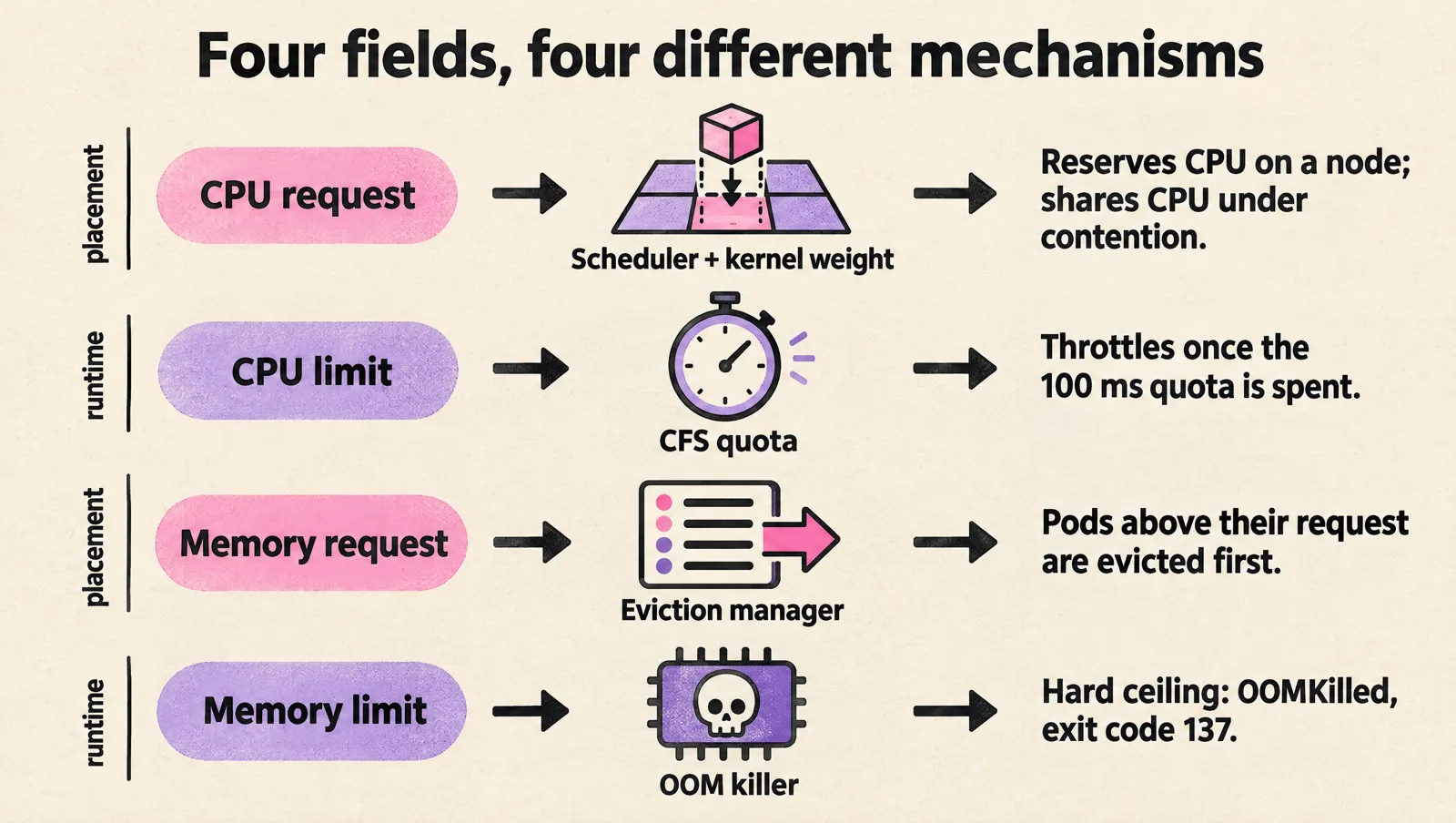
Most confusion about requests and limits comes from treating them as one feature. In reality four separate components read those two fields, and each one does something different with them.
| Field | Who reads it | What happens |
|---|---|---|
| CPU request | Scheduler, then the kernel | The scheduler only places the pod on a node whose unreserved CPU covers the sum of requests. At runtime the request becomes the container's CPU weight, so under contention CPU is shared in proportion to requests. |
| CPU limit | Kernel CFS bandwidth control | The container gets a quota of CPU time per 100 ms period (the kubelet default cpuCFSQuotaPeriod). Once the quota is spent, every thread in the container waits for the next period. That wait is throttling, and it happens even if the node is idle. |
| Memory request | Scheduler and the kubelet eviction manager | Used for placement, and later to decide who gets evicted first when the node runs low on memory: pods using more than their request go first. |
| Memory limit | Kernel cgroup memory controller | A hard ceiling. When the container exceeds it and the kernel cannot reclaim memory, the kernel OOM killer terminates it and the container shows OOMKilled with exit code 137. |
Two consequences matter for sizing:
- The scheduler never looks at actual usage. A node can be "full" at 15% real CPU because requests are inflated, or overcommitted at 100% real usage because requests are tiny. Requests are a reservation, and the cluster is only as efficient as those reservations are accurate.
- CPU is compressible, memory is not. Too little CPU makes a process slow. Too little memory kills it. That is why the recommended policies for CPU and memory are different, and why copying the same pattern for both is the most common mistake.
One detail that surprises people: if you set a limit and no request, Kubernetes copies the limit into the request (unless a LimitRange default applies). A manifest with only limits.cpu: "2" reserves two full CPUs on the node.
QoS classes and eviction order: Guaranteed, Burstable, BestEffort
From the requests and limits you set, Kubernetes derives a Quality of Service (QoS) class for each pod. You never set the class directly, and in-place resize cannot change it later, so pick it deliberately.
| QoS class | How you get it | OOM score adjustment | When to use it |
|---|---|---|---|
| Guaranteed | Every container has CPU and memory requests equal to limits | -997 (killed last) | Databases, stateful systems, anything that needs exclusive cores with the static CPU manager policy |
| Burstable | At least one container has a request or limit, but it does not meet the Guaranteed rule | Between 2 and 999, lower for pods with larger memory requests | Most stateless services, especially with memory request = limit and no CPU limit |
| BestEffort | No requests or limits on any container | 1000 (killed first) | Almost never in production. Throwaway jobs on dedicated nodes at most |
When a node runs short of memory, the kubelet evicts pods in this order: first BestEffort and Burstable pods whose usage exceeds their requests (ranked by priority, then by how far over their request they are), and last Guaranteed pods and Burstable pods that stay under their requests. Read that again, because it is the strongest argument for accurate memory requests: a pod that stays within its memory request is in the last group to be evicted, regardless of QoS class.
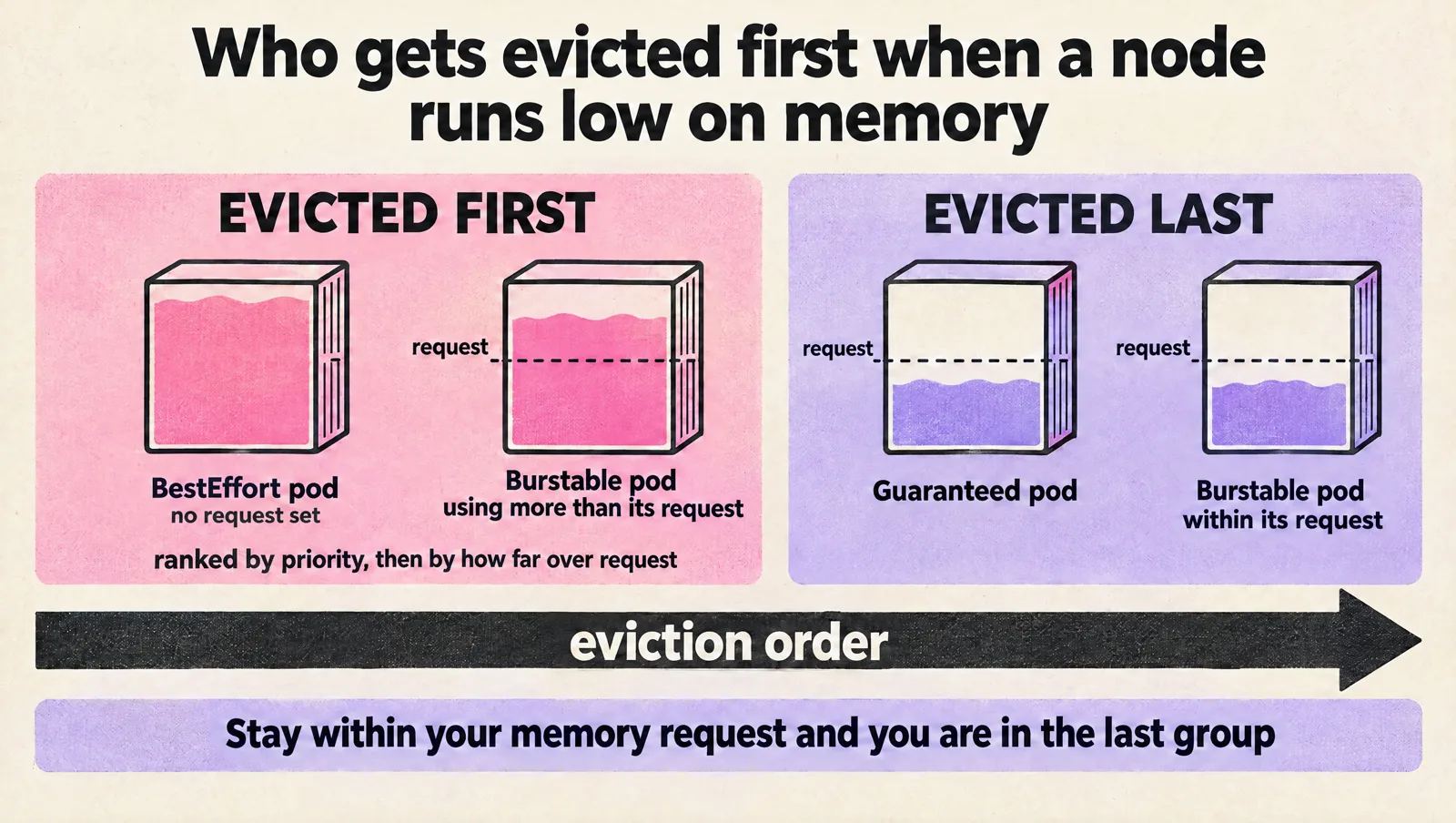
The default Linux hard eviction threshold is memory.available<100Mi. If the kernel OOM killer acts before the kubelet notices pressure, it picks the container with the highest OOM score, which is why BestEffort pods and Burstable pods with small requests die first.
Should you set CPU limits in Kubernetes?
This is the most searched and most argued part of the topic, so here is a clear position: set CPU requests everywhere; drop CPU limits for latency-sensitive services by default; keep them where you have a concrete reason.
Why CPU limits cause throttling at low average usage
The CFS quota is measured in CPU time per 100 ms period, summed across all threads in the container. A container with limits.cpu: "1" gets 100 ms of CPU time per 100 ms period. If a request arrives and the application runs 8 threads in parallel (a garbage collector, a thread pool, a Node.js libuv pool), those threads can burn the whole 100 ms of quota in about 12.5 ms of wall-clock time. Every thread then sleeps for the remaining 87.5 ms of the period. Your dashboard shows 30% average CPU, and your p99 latency shows an extra 80 ms that nobody can explain.

That is why "my pod is throttled but CPU usage is low" is not a contradiction. Averages over 30 seconds or a minute hide bursts that happen inside a 100 ms window.
Has the kernel fixed this?
Partly. A real kernel bug made throttling much worse on multi-core machines: per-CPU slices of quota expired unused, so highly threaded workloads were throttled while using a fraction of their limit. The fix ("sched/fair: Fix low cpu usage with high throttling by removing expiration of cpu-local slices") landed in 2019 around Linux 5.4 and was backported to stable kernels, so any modern node image has it. What remains is not a bug: a hard quota per period is how CPU limits are supposed to work, and cgroup v2 (where the limit lives in cpu.max) enforces the same quota and period model. Kubernetes does not expose the cgroup v2 burst setting, so you cannot ask the kernel to absorb short spikes above the limit.
What happens without a CPU limit
Without a limit, a container can use idle CPU on the node. When the node is busy, CPU is divided by weight, and the weight comes from the CPU request. A pod with a 500m request competing against a pod with a 1000m request gets one third of the contended CPU. So removing limits is safe only when every pod on the node has an honest CPU request. A pod with no request at all gets the minimum weight and starves first, which is the right outcome.
When to keep CPU limits
| Situation | Recommendation |
|---|---|
| Latency-sensitive API or web service on a cluster where all pods set requests | No CPU limit, or a limit at 2x to 4x the request as a runaway guard |
| Multi-tenant cluster or untrusted workloads | Keep limits, so one tenant cannot consume idle CPU others expect to burst into |
| Batch jobs, CI runners, video or ML preprocessing that will use every core it sees | Keep limits, or isolate on dedicated node pools |
| Databases or workloads that need dedicated cores with the static CPU manager | Guaranteed QoS with integer CPU requests equal to limits |
| Load tests and capacity benchmarks | Limits equal to requests, so results reflect what you will reserve in production |
Namespace has a ResourceQuota on limits.cpu | Every pod must set a CPU limit (or receive one from a LimitRange default). Prefer quotas on requests.cpu instead |
A practical middle ground that works well for teams that are nervous about removing limits entirely: keep a generous CPU limit (for example 4x the request) and alert on throttling. You keep protection against a runaway loop and lose almost all of the latency penalty.
Memory requests and limits: why request should equal limit
For memory, the common advice is to set the memory request equal to the memory limit. It is good advice, and the reason is the eviction and OOM mechanics above.
- Memory cannot be taken back. If a pod is allowed to grow from a 512Mi request to a 2Gi limit, the scheduler placed it as if it needed 512Mi. When several neighbors do the same, the node runs out of real memory, and the kubelet or the kernel kills something. Often not the pod that grew.
- Request = limit makes failures local. The container can only hurt itself. If it needs more, it is OOMKilled with a clear signal instead of triggering node pressure that evicts unrelated pods.
- It keeps you in the "evicted last" group. A pod using at most its request is never in the first eviction group.
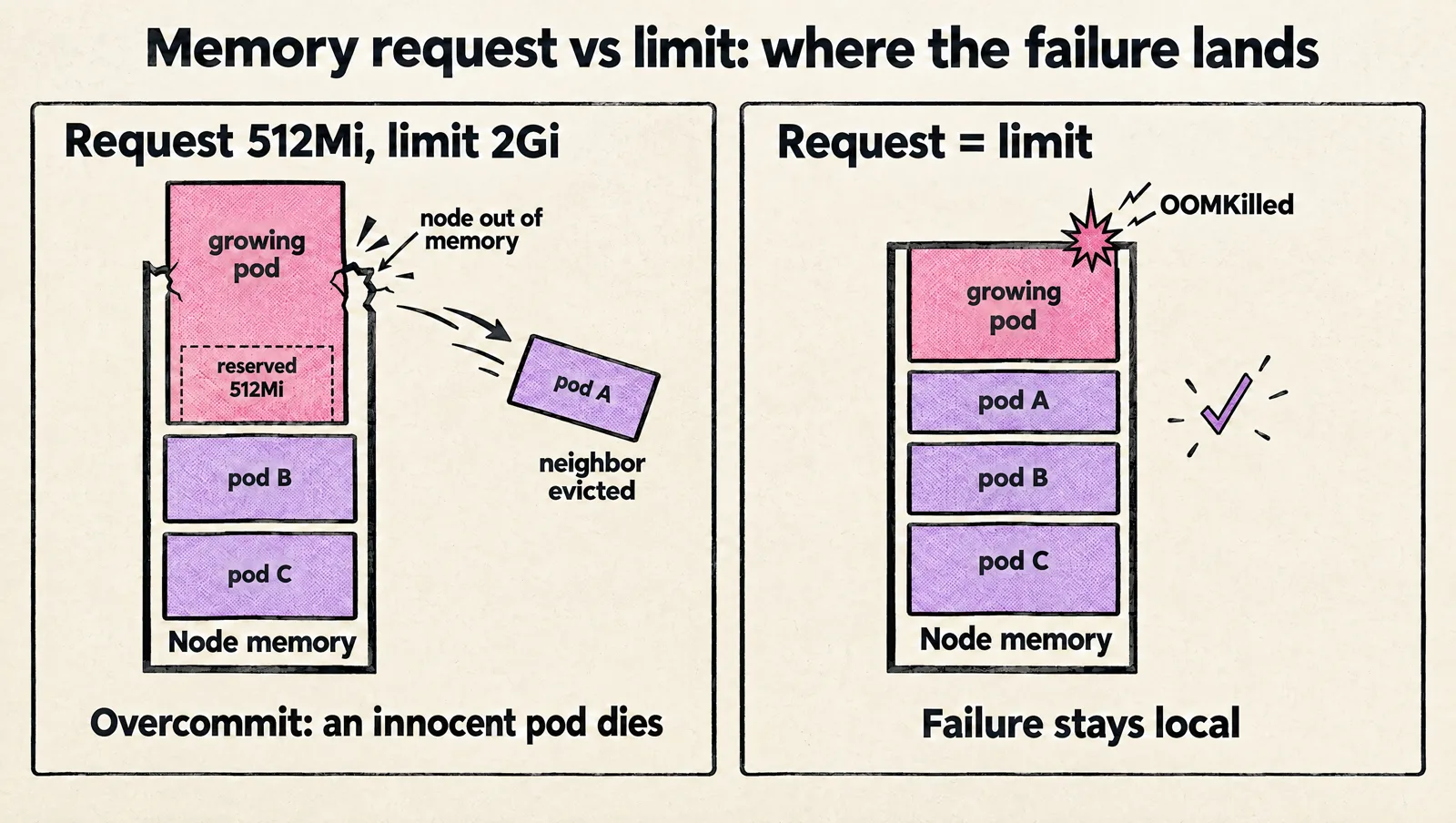
The exception is a workload with a rare, short, known memory spike (a nightly report, a large startup cache) on nodes with spare memory. A gap between request and limit can be acceptable there, but treat it as overcommit you have chosen, and watch node memory pressure.
On cgroup v2 nodes, the kubelet by default sets memory.oom.group on container cgroups (the singleProcessOOMKill kubelet setting defaults to false), so when the OOM killer fires, all processes in the container are killed together. On cgroup v1, only the single largest process was killed, which could leave a container half alive with its main worker gone. If you run multi-process containers (for example a process manager with workers), expect the whole container to restart on cgroup v2.
Kubernetes also has an opt-in MemoryQoS feature gate that uses cgroup v2 memory.high to throttle memory allocation before the limit for Burstable pods. It is off by default; do not size around it unless your platform team has enabled it.
How to size requests and limits from real metrics, step by step
Guessing produces either waste or incidents. Here is the method we use when tuning production clusters. It assumes Prometheus with cAdvisor metrics (scraped through the kubelet) and kube-state-metrics, which most clusters already have through kube-prometheus-stack or a managed equivalent.
Step 1: Collect at least 7 to 14 days of data
The window must include peak traffic days, deploys, cron jobs, cache warmups and any weekly batch. A day of data underestimates almost everything. For brand-new services, start with a conservative guess, run for a week, then apply this method.
Step 2: Find CPU usage at p95 and p99
# p95 of 5-minute CPU usage per container over 14 days (in cores)
quantile_over_time(0.95,
  sum by (namespace, pod, container) (
    rate(container_cpu_usage_seconds_total{namespace="production", container!="", container!="POD"}[5m])
  )[14d:5m]
)
Change 0.95 to 0.99 to see the tail. To get one number per workload across all of its replicas, wrap the expression in max by (namespace, container) (...).
Step 3: Measure throttling
# Fraction of CFS periods in which the container was throttled
sum by (namespace, pod, container) (
  increase(container_cpu_cfs_throttled_periods_total{namespace="production", container!=""}[5m])
)
/
sum by (namespace, pod, container) (
  increase(container_cpu_cfs_periods_total{namespace="production", container!=""}[5m])
)
These counters only exist for containers with a CPU limit. As a rule of thumb, a latency-sensitive service throttled in more than a few percent of periods during peak is worth fixing, and anything above 20% is almost certainly hurting tail latency. Correlate with your p99 latency before deciding. container_cpu_cfs_throttled_seconds_total gives total time spent throttled if you prefer seconds to periods.
Step 4: Find peak memory working set
# Peak memory working set per container over 14 days (bytes)
max by (namespace, container) (
  max_over_time(container_memory_working_set_bytes{namespace="production", container!="", container!="POD"}[14d])
)
Use the working set, not RSS or total usage: it is the number the kubelet uses for eviction decisions and what kubectl top shows. Use the max, not a percentile, because memory sizing must survive the worst case.
Step 5: Compare against what you requested
# Requested CPU per container (cores), from kube-state-metrics
sum by (namespace, pod, container) (
  kube_pod_container_resource_requests{namespace="production", resource="cpu"}
)

# Containers whose last termination was an OOM kill
kube_pod_container_status_last_terminated_reason{namespace="production", reason="OOMKilled"} == 1
Dividing the p95 usage from step 2 by the request from step 5 gives a utilization ratio per container. Below 0.3 means you are paying for capacity you do not use. Above 1.0 means the pod regularly relies on spare CPU it never reserved.
Step 6: Apply the sizing rules
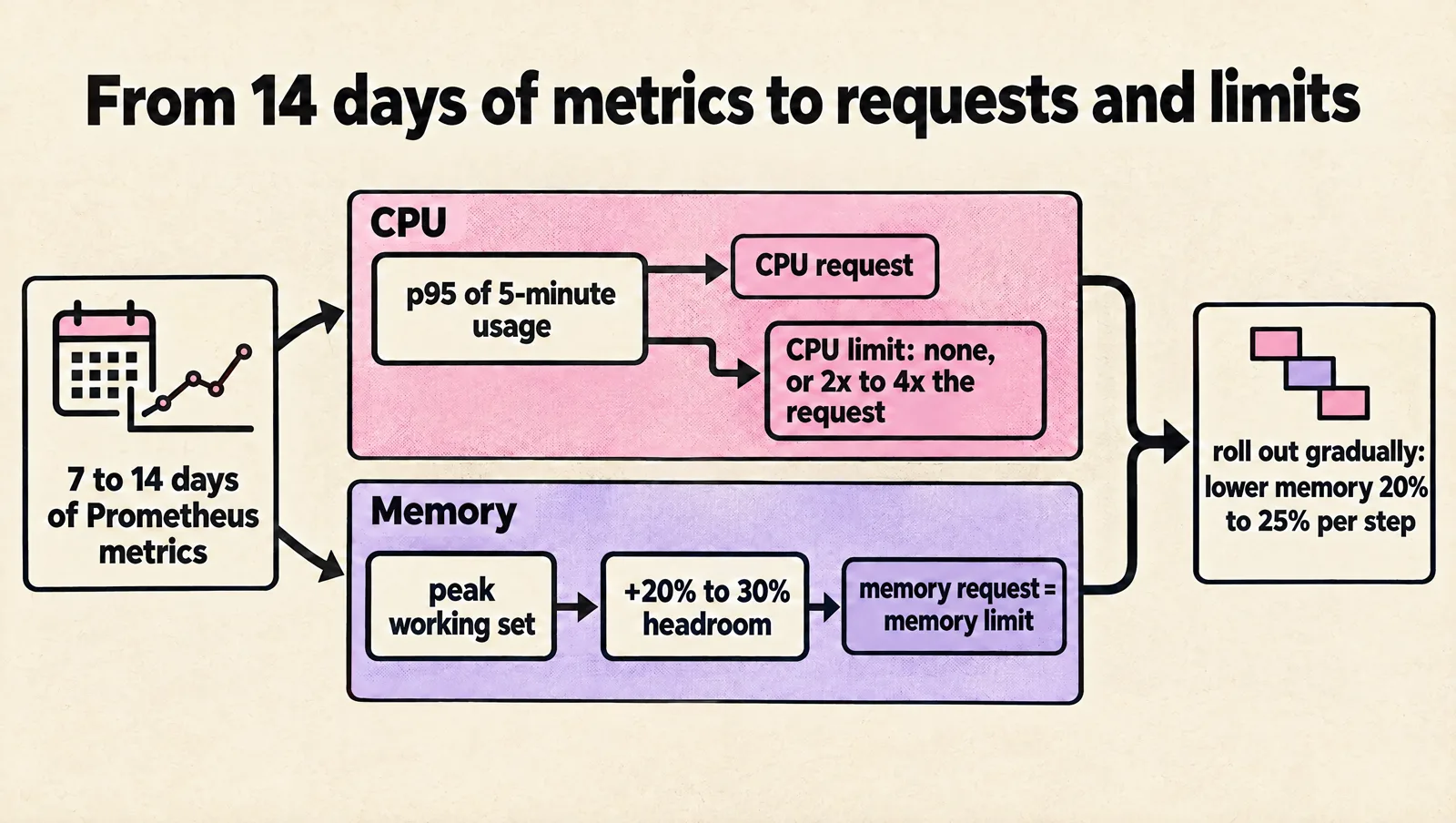
| Setting | Starting rule | Notes |
|---|---|---|
| CPU request | p95 of 5-minute usage over 14 days | Use p99 for services with strict latency SLOs. If HPA scales on CPU, see the HPA section: the request is also your scaling denominator |
| CPU limit | None, or 2x to 4x the request | Equal to request only for Guaranteed workloads and benchmarks |
| Memory request | Peak working set + 20% to 30% | More headroom for runtimes with large off-heap usage (JVM) and for workloads that grow with data |
| Memory limit | Equal to the memory request | Raise both together. Never set the limit below the observed peak |
| Ephemeral storage | Request what you write to local disk (logs, temp files, emptyDir) | Pods that exceed an ephemeral-storage limit are evicted |
These are starting points, not laws. The point is to have a rule, apply it consistently, and revisit it on a schedule, instead of tuning each service from memory during an incident.
Step 7: Roll out like any other risky change
Changing resources on a Deployment triggers a rollout. Lowering memory is the dangerous direction, so lower it in steps (no more than 20% to 25% at a time), canary it on one service first, and watch OOM kills and restarts for a full traffic cycle. Make sure the rollout cannot take capacity below what you need: a sensible maxUnavailable, a PodDisruptionBudget, and readiness probes that do not flap under the new CPU budget (see how to configure liveness probes without causing restart loops, because a CPU-starved pod failing its liveness probe is a classic self-inflicted outage).
Copy-paste YAML for common workloads
Latency-sensitive stateless service (Burstable, no CPU limit)
apiVersion: apps/v1
kind: Deployment
metadata:
  name: api
spec:
  replicas: 3
  selector:
    matchLabels:
      app: api
  template:
    metadata:
      labels:
        app: api
    spec:
      containers:
        - name: api
          image: registry.example.com/api:1.42.0
          resources:
            requests:
              cpu: 500m
              memory: 768Mi
            limits:
              memory: 768Mi   # memory limit = request; no CPU limit
Same service with a runaway guard on CPU
          resources:
            requests:
              cpu: 500m
              memory: 768Mi
            limits:
              cpu: "2"        # 4x the request: protects the node, rarely throttles
              memory: 768Mi
Guaranteed pod for a database or pinned workload
          resources:
            requests:
              cpu: "4"        # integer CPUs are required for exclusive cores with the static CPU manager
              memory: 16Gi
            limits:
              cpu: "4"
              memory: 16Gi
Batch job that should not hog the node
apiVersion: batch/v1
kind: Job
metadata:
  name: nightly-export
spec:
  template:
    spec:
      restartPolicy: Never
      containers:
        - name: export
          image: registry.example.com/export:2.3.1
          resources:
            requests:
              cpu: "1"
              memory: 2Gi
            limits:
              cpu: "2"
              memory: 2Gi
LimitRange and ResourceQuota: namespace defaults and guardrails
Individual manifests drift. Namespace policies make sure nothing reaches production as BestEffort and that one team cannot reserve the whole cluster.
A LimitRange fills in defaults for containers that omit requests or limits, and rejects values outside a min and max:
apiVersion: v1
kind: LimitRange
metadata:
  name: container-defaults
  namespace: production
spec:
  limits:
    - type: Container
      defaultRequest:      # applied when a container sets no request
        cpu: 100m
        memory: 256Mi
      default:             # applied when a container sets no limit
        memory: 256Mi      # no CPU default limit on purpose
      min:
        cpu: 10m
        memory: 32Mi
      max:
        cpu: "8"
        memory: 16Gi
A ResourceQuota caps the total a namespace can request:
apiVersion: v1
kind: ResourceQuota
metadata:
  name: team-quota
  namespace: production
spec:
  hard:
    requests.cpu: "40"
    requests.memory: 80Gi
    limits.memory: 80Gi
    pods: "200"
Notice what is missing: limits.cpu. Once a quota tracks a resource, every new pod in the namespace must declare that value or the API server may reject it. A quota on limits.cpu therefore forces CPU limits on every pod, which quietly undoes a "no CPU limits" policy. Quota on CPU requests, and on memory requests and limits, is usually what you want.
Keep LimitRange defaults small and treat them as a safety net. A default of 100m CPU for a service that really needs two cores makes it schedulable and then slow; the real fix is still a measured request in the manifest.
Vertical Pod Autoscaler and in-place pod resize
Use VPA in recommendation mode first
The Vertical Pod Autoscaler (VPA) watches usage and computes recommended requests. Its updateMode controls what it does with them:
| updateMode | Behavior |
|---|---|
Off | Only writes recommendations to the VPA status. Nothing changes on pods |
Initial | Sets requests when pods are created, never afterwards |
Recreate | Evicts pods whose requests differ significantly from the recommendation (respects PodDisruptionBudgets) |
InPlaceOrRecreate | Resizes running pods in place, falls back to eviction if that fails |
InPlace | Only resizes in place and never evicts; retries later if a resize is not possible |
Auto | Deprecated; currently behaves like Recreate |
Running VPA with updateMode: "Off" across a namespace is the cheapest way to get a second opinion on every workload, and it feeds the sizing method above:
apiVersion: autoscaling.k8s.io/v1
kind: VerticalPodAutoscaler
metadata:
  name: api
  namespace: production
spec:
  targetRef:
    apiVersion: apps/v1
    kind: Deployment
    name: api
  updatePolicy:
    updateMode: "Off"
  resourcePolicy:
    containerPolicies:
      - containerName: "*"
        minAllowed:
          cpu: 50m
          memory: 64Mi
        maxAllowed:
          cpu: "4"
          memory: 8Gi
kubectl describe vpa api -n production # see Target, Lower Bound and Upper Bound per containerDo not let VPA and the Horizontal Pod Autoscaler (HPA) act on the same metric. The VPA project explicitly warns against using both on CPU or memory for the same workload; they fight each other. VPA on memory with HPA on CPU, or HPA on custom metrics, is supported.
In-place pod resize is now stable
In-place pod resize lets you change CPU and memory on a running pod without recreating it. It was introduced as alpha in Kubernetes v1.27, became beta (enabled by default) in v1.33, and is stable since v1.35. Resizes go through the pod's resize subresource, which needs kubectl v1.32 or later:
kubectl patch pod api-7d9c6b5f4-x2k8p -n production --subresource resize --patch \
  '{"spec":{"containers":[{"name":"api","resources":{"requests":{"cpu":"800m"}}}]}}'

# Check progress: look for PodResizePending (Infeasible or Deferred) or PodResizeInProgress
kubectl get pod api-7d9c6b5f4-x2k8p -n production -o jsonpath='{.status.conditions}'
Per container, resizePolicy decides whether a change needs a restart:
          resizePolicy:
            - resourceName: cpu
              restartPolicy: NotRequired
            - resourceName: memory
              restartPolicy: RestartContainer   # most runtimes size their heap at startup
Limits worth knowing before you build automation on it: the QoS class cannot change through a resize; decreasing a memory limit without a restart is best effort and is skipped if current usage is above the new limit; Windows pods, non-restartable init containers, and pods under the static CPU or memory manager cannot be resized in place. Also remember that resizing a pod does not change its Deployment: the next rollout brings back the template values. Use resize for emergencies and for VPA's in-place modes, and keep the source of truth in Git.
Requests and HPA: utilization is a ratio of the request
An HPA with a CPU utilization target computes usage divided by request. That has two consequences that cause real incidents.
- HPA without resource requests does nothing. If any container in the pod lacks a request for the metric, the utilization is undefined and the HPA takes no action for it. Either set requests on every container (sidecars included), use a
ContainerResourcemetric that targets only the application container, or switch to anAverageValuetarget expressed in absolute cores. - Changing requests changes scaling. If you cut a CPU request in half during a cost cleanup, the same traffic now reads as double the utilization, and the HPA adds replicas. Retune the HPA target in the same change as the request.
apiVersion: autoscaling/v2
kind: HorizontalPodAutoscaler
metadata:
  name: api
spec:
  scaleTargetRef:
    apiVersion: apps/v1
    kind: Deployment
    name: api
  minReplicas: 3
  maxReplicas: 20
  metrics:
    - type: ContainerResource
      containerResource:
        name: cpu
        container: api          # ignores sidecars with missing or odd requests
        target:
          type: Utilization
          averageUtilization: 70
For the scaling side of this, see how to configure HPA without scaling flaps and how to set up Kubernetes autoscaling without cost surprises. Node autoscalers such as Cluster Autoscaler and Karpenter also provision nodes from pending pods' requests, so inflated requests turn directly into extra nodes on the bill.
Runtime settings: JVM, Go and Node.js inside resource limits
Containers do not hide the host from the process. Each runtime decides how much heap and how many threads to use, and if it guesses from the node instead of the container, your carefully chosen limits will not hold.
| Runtime | What it does by default | What to set |
|---|---|---|
| JVM (JDK 10+ and 8u191+) | UseContainerSupport is on, so the JVM reads the container memory and CPU limits. The default max heap is only 25% of the container memory (MaxRAMPercentage=25) | -XX:MaxRAMPercentage=70 to 75 for heap-heavy services, leaving the rest for metaspace, thread stacks, direct buffers and the code cache. Without a CPU limit, consider -XX:ActiveProcessorCount so thread pools match the CPU request |
| Go 1.25+ | GOMAXPROCS defaults to the cgroup CPU limit when it is lower than the node's CPU count, and updates if the limit changes. CPU requests are ignored. The heap has no limit by default | Set GOMEMLIMIT to about 90% of the memory limit so the GC works harder before the OOM killer acts. Without a CPU limit, set GOMAXPROCS from the CPU request. On Go older than 1.25, use go.uber.org/automaxprocs |
| Node.js | Recent versions size the default V8 heap from the container memory limit, but the fraction and the cap vary by version | Set --max-old-space-size explicitly (in MiB) to about 75% of the memory limit. Size UV_THREADPOOL_SIZE to your CPU request if you lean on the libuv pool |
The downward API lets you feed the container's own requests and limits into these settings so they never drift from the manifest:
          env:
            - name: GOMAXPROCS
              valueFrom:
                resourceFieldRef:
                  resource: requests.cpu   # rounded up to a whole number of CPUs
                  divisor: "1"
            - name: GOMEMLIMIT
              value: "690MiB"              # about 90% of a 768Mi memory limit
A Go service on a 64-core node with no CPU limit and no GOMAXPROCS will run 64 scheduler threads against a 500m request. It works until the node is busy, then latency falls apart. A JVM with no heap setting in a 4Gi container uses a 1Gi heap and gets OOMKilled only if off-heap usage grows, which makes the failure look random. Both are configuration problems, not sizing problems.
Troubleshooting: OOMKilled, CPU throttling, Pending pods and evictions
| Symptom | Likely cause | How to confirm | Fix |
|---|---|---|---|
Container restarts with OOMKilled, exit code 137 | Memory limit below real peak, a leak, or a runtime heap larger than the limit | kubectl describe pod <pod> (Last State: Terminated, Reason: OOMKilled); container_oom_events_total | Raise memory request and limit together; set runtime heap limits; if usage climbs steadily between restarts, fix the leak |
| High p99 latency, low average CPU | CFS throttling from a tight CPU limit | Throttled periods ratio query above; kubectl top pod --containers looks fine | Remove the CPU limit or raise it to 2x to 4x the request; reduce thread count to match CPU |
Pod stuck Pending with 0/12 nodes are available: Insufficient cpu (or memory) | Sum of requests on every node leaves no room, even if real usage is low | kubectl describe node <node> and read "Allocated resources" | Right-size inflated requests elsewhere, let the node autoscaler add capacity, or lower this pod's request if it is overestimated |
Pods Evicted with "The node was low on resource: memory" | Node memory pressure from Burstable pods using more than their requests | kubectl get events -A --field-selector reason=Evicted; node conditions show MemoryPressure | Set memory request = limit on the pods that grow; reserve system memory on nodes |
| Noisy neighbor: one service slows when another deploys or bursts | Neighbors with no or tiny CPU requests using idle CPU, or BestEffort pods on the node | kubectl top pod -A --sort-by=cpu; compare usage to requests | Enforce requests with a LimitRange, add CPU limits to batch workloads, isolate them on separate node pools |
HPA shows <unknown> for CPU and never scales | A container in the pod has no CPU request, or metrics-server is missing | kubectl describe hpa <name> shows "missing request for cpu" | Add requests to all containers or use a ContainerResource metric |
| Cluster is "full" at 20% real utilization | Requests set from guesses or old peaks | Step 5 utilization ratio per container | Apply the sizing method; run VPA in Off mode to confirm |
A few commands that answer most questions quickly:
# Requests and limits for every container in a namespace
kubectl get pods -n production -o custom-columns='POD:.metadata.name,CONTAINER:.spec.containers[*].name,CPU_REQ:.spec.containers[*].resources.requests.cpu,CPU_LIM:.spec.containers[*].resources.limits.cpu,MEM_REQ:.spec.containers[*].resources.requests.memory,MEM_LIM:.spec.containers[*].resources.limits.memory'

# QoS class of each pod
kubectl get pods -n production -o custom-columns='POD:.metadata.name,QOS:.status.qosClass'

# How much of a node is already reserved by requests
kubectl describe node <node> | grep -A 8 "Allocated resources"

# Live usage per container (needs metrics-server)
kubectl top pod -n production --containers
When an eviction storm is caused by a node drain rather than pressure, the playbook is different: see how to drain Kubernetes nodes without evicting critical workloads.
Kubernetes resource requests and limits checklist
- Every container, including sidecars and init containers, has a CPU request and a memory request.
- Memory limit equals memory request for nearly every workload.
- CPU limits are absent or generous for latency-sensitive services, and present for batch, multi-tenant and benchmark workloads.
- Requests come from at least 7 to 14 days of metrics: p95 CPU, peak memory working set plus headroom.
- A dashboard or alert tracks throttled periods, OOM kills, restarts, and request-to-usage ratio per workload.
- JVM, Go and Node.js settings are aligned with the container limits (heap,
GOMAXPROCS,GOMEMLIMIT). - Every production namespace has a LimitRange with sane defaults and a ResourceQuota on requests (not on
limits.cpuunless you want CPU limits everywhere). - VPA runs in
Offmode as a second opinion, and never on the same metric as an HPA. - HPA targets are retuned whenever CPU requests change.
- Resource changes roll out gradually, memory decreases in small steps, with a PodDisruptionBudget in place.
- Sizing is reviewed on a schedule (monthly or quarterly), not only during incidents.
FAQ
What is the difference between Kubernetes requests and limits?
A request is what the scheduler reserves for the container on a node and what determines its share of CPU under contention. A limit is a runtime ceiling enforced by the kernel: CPU above the limit is throttled, memory above the limit gets the container OOMKilled. Requests decide placement, limits decide behavior at the edge.
Should I set CPU limits in Kubernetes?
For latency-sensitive services on a cluster where every pod has accurate CPU requests, usually not, because CFS quotas throttle bursty and multi-threaded applications even when the node has idle CPU. Keep CPU limits for batch jobs, multi-tenant clusters, Guaranteed pods that need dedicated cores, and benchmarks. A limit at 2x to 4x the request is a reasonable compromise.
Why is my pod CPU throttled when CPU usage is low?
Throttling is measured per 100 ms period, while dashboards average over much longer windows. A multi-threaded process can use its whole quota in a few milliseconds and then wait for the rest of the period. Check container_cpu_cfs_throttled_periods_total against container_cpu_cfs_periods_total, then raise or remove the CPU limit.
Should memory requests equal memory limits?
In most cases, yes. Memory cannot be reclaimed from a running process, so a gap between request and limit is overcommit that ends in an OOM kill or a node eviction, often of a different pod. Setting them equal keeps failures local to the container that grew.
How do I adjust Kubernetes resources safely?
Measure first (p95 CPU and peak memory over one to two weeks), change one workload at a time, lower memory in steps of 20% to 25% or less, retune any HPA targets in the same change, and watch restarts, OOM kills and latency for a full traffic cycle. On Kubernetes v1.33 and later you can also resize CPU on a running pod in place for urgent fixes, then commit the value to the manifest.
Can HPA work without resource requests?
Not with a utilization target: if any container in the pod lacks a request for the metric, utilization is undefined and the HPA takes no action. Use an AverageValue target in absolute units, a ContainerResource metric for the main container, or custom metrics instead.
What does exit code 137 OOMKilled mean?
Exit code 137 means the process received SIGKILL (128 + 9). With the reason OOMKilled, the kernel killed the container because it exceeded its memory limit or the node ran out of memory. Compare the peak working set to the limit and check whether the runtime's heap setting fits inside it.
Is in-place pod resize production ready?
Yes. In-place resize of CPU and memory is stable since Kubernetes v1.35 (beta and on by default since v1.33), and VPA can use it through the InPlaceOrRecreate and InPlace update modes. It cannot change a pod's QoS class, and memory decreases without a restart are best effort.
Getting resource sizing right across a whole cluster
Requests and limits look like a per-service setting, but the payoff is cluster-wide: accurate requests let the scheduler pack nodes tightly, let autoscalers make the right call, and turn OOM kills and throttling into rare, explainable events. Start with the services that page you most or cost the most, apply the measurement method above, and put the guardrails in place so new services start from good defaults. If you want senior engineers to review your cluster's sizing, autoscaling and node pools with you, book a free production DevOps consultation.